


extraction
new customers
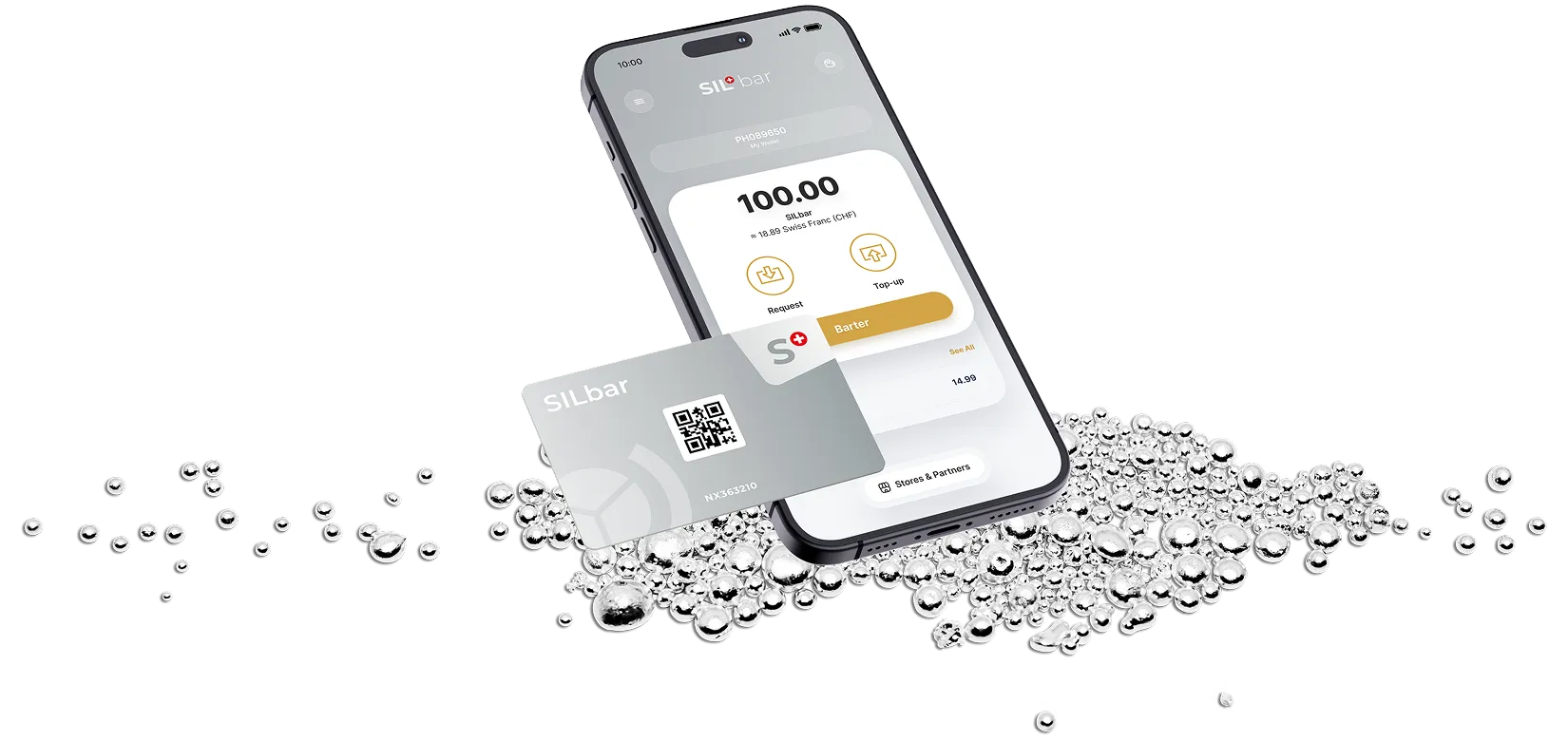
Successful bartering with silver










Benefit from these advantages

More visibility
for your business

Liquidity without
Banking risk

Toll-free
Transactions

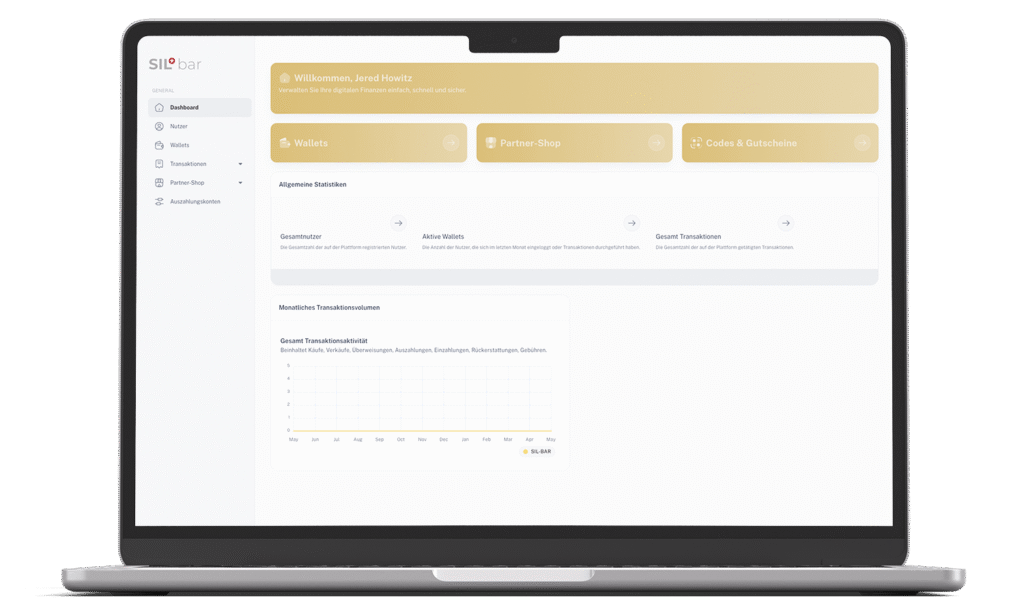
Clear dashboard
for administration
Public company profile
in the app


Here's how it works
Step 1
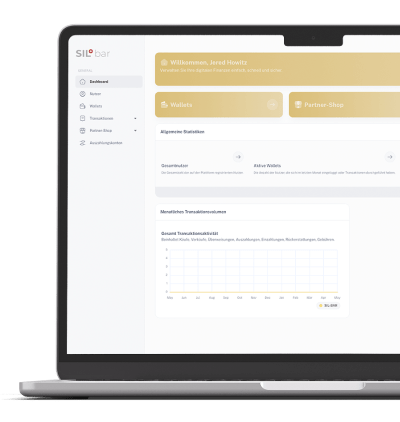
Register as a trading partner, log in to the dashboard and add details about your location.
Step 2
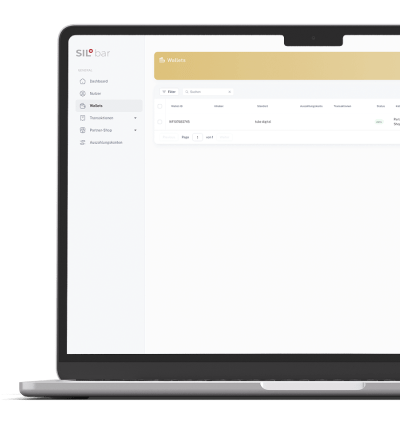
After reviewing your request, we will activate your account and automatically generate your wallet ID.
Step 3
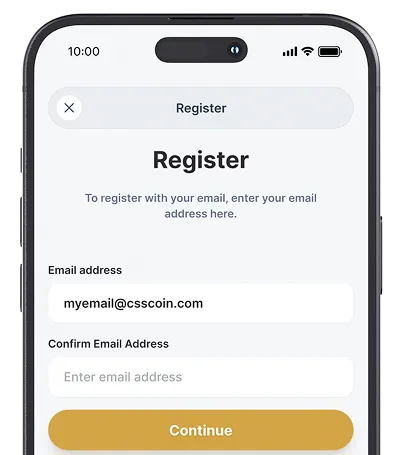
Download the SILbar app, log in with your credentials from the dashboard and follow the activation process of your wallet.
Step 4
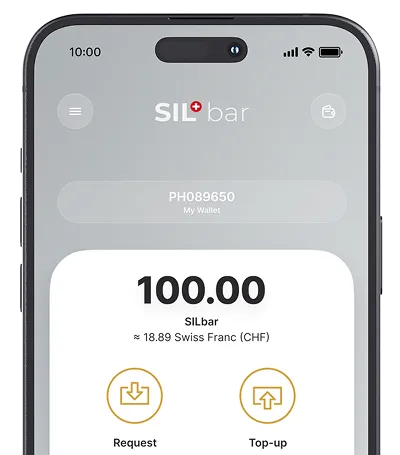
When your wallet is activated, you will appear as a trading partner in the SILbar app and you are ready to barter.

Step-by-step setup instructions
start
DASHBOARD REGISTRATION
1
Open website
Go to https://core.silbar.swiss/ and click on "New trading partner? Register here!"
2
Enter email address
Enter your email address and click “Continue”.
3
Received verification code
You will now receive a confirmation code to your email.
4
Enter verification code
Enter this code in the “Verification Code” field in the app and click “Continue”.
5
Create password
Now create any strong password. Also enter your first and last name as well as the company name and click on “Register”.
DASHBOARD SETUP
6
Log in to dashboard
Log in now with your email and the password you created at https://core.silbar.swiss/.
7
Add location details
Navigate to the Location page in the left sidebar menu. Complete the required fields to add your location as a trading partner.
ADD GOOGLE PLACE ID
8
Open Google Maps
Open your business location in Google Maps via maps.google.com.
9
Open link to Google profile
Click “Share” button on the left and copy the link provided.
10
Extract Google Place ID
Extract the Google Place ID from the link (it's the text after the slash /) and add this string in your location details.
Example: In the link https://maps.app.goo.gl/443ia7BBFToWckaZ6,
The Google Place ID is: 443ia7BBFToWckaZ6.
ADD COORDINATES
11
Click on the red pin
Right-click on the red pin of your location on Google Maps, copy the longitude and latitude and add this to your location details.
12
Save information
After you have filled out all the fields, confirm your details at the end with “Save”.
APPLICATION CHECK AND ACCOUNT RELEASE
13
Application review
A BBWM employee will review your application and ask you for additional information if necessary.
14
Account sharing
Once your application is approved, a wallet ID will be created and linked to your trading partner location.
DOWNLOAD APP
15
Open store
Open the AppStore or GooglePlay Store on your smartphone.
16
Find app
Enter “SILbar” in the search and download the app.
CREATE WALLET
17
Log in to the SILbar app
Log in now with your email and the password you created.
18
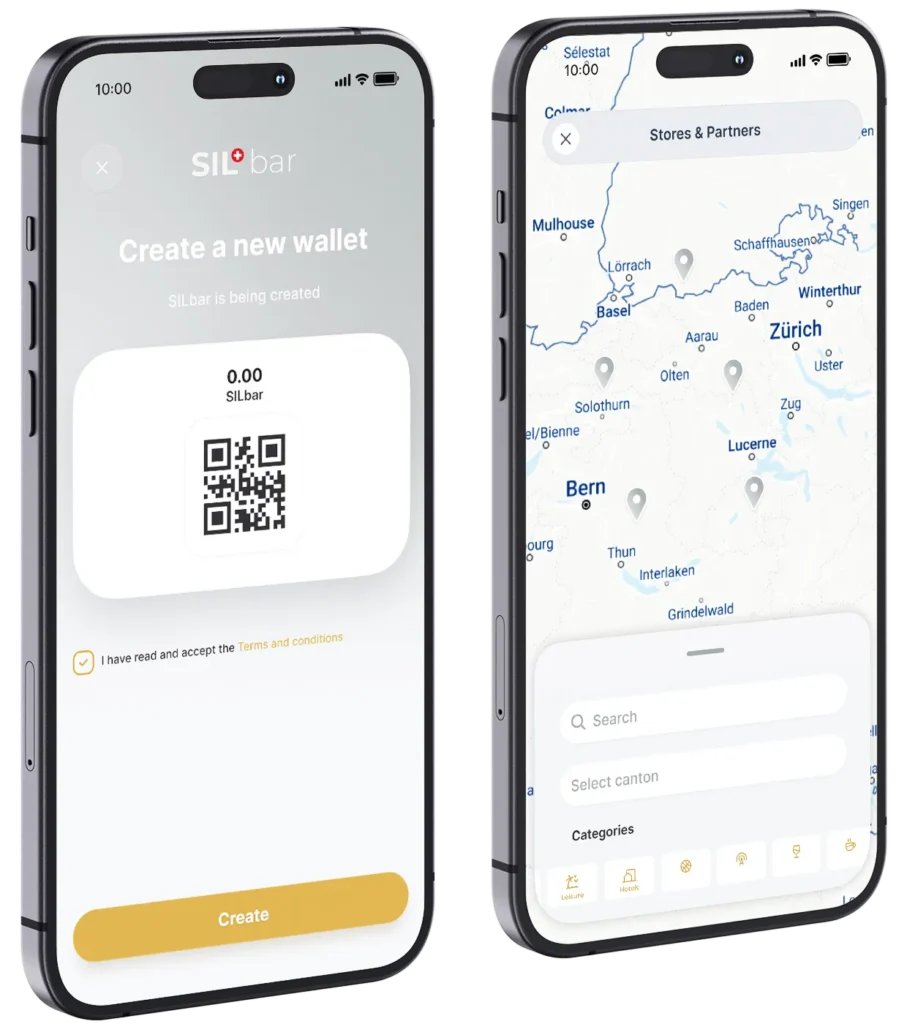
Create wallet
Accept the terms and conditions and create your wallet.
ACTIVATE WALLET
19
Activate wallet
Click on the “Activate” button and you will be taken to the S-Deposito login page.
20
S-Deposito Login
Log in with your S-Deposito access data.
21
S-Deposito confirmation
After logging into your S-Deposito, click on the “Confirm” button.
22
Link
Your S-Deposito is now linked to your wallet in the SILbar app.
23
permit
Once your wallet is approved, your business's location will appear on the SILbar map.
Deposit into wallet
24
Deposit into wallet
To deposit silver into your SILbar Wallet, click on the “Deposit” button.
25
S-Deposito Login
A new page will open and you can log in to your S-Deposito.
26
Barter page in the S-Deposito portal
After successfully logging in, you will land directly on the barter page in the S-Deposito portal.
27
Set silver amount
Either enter the amount of silver you want or an amount of money to deposit the amount of silver into your wallet in the app.
28
Perform silver transfer
As the penultimate step, select your SILbar wallet, then click on “Perform transaction” and confirm the process with “Yes”.
29
Successful silver transfer
Close the window by clicking on the cross in the top left and you will now see your updated silver amount in the top right (within 60 seconds).
Goal
Frequently asked questions
-
Do I need an S-Deposito to barter?
Yes, the S-Deposito is the foundation for bartering silver. It guarantees that every barter transaction is backed by physical silver.
-
How does bartering work via the app?
You open your app, scan the QR code of the partner store, enter the amount and barter the silver. The store receives the appropriate amount of silver in their S-Deposit and you receive the product or service.
-
Are there any fees for the wallet?
No, there are no additional fees for both the wallet and each barter transaction. The use of barter is included in the annual deposit fee for your S-Deposito.
-
Can I also barter with gold?
No, currently you can only barter with silver.